Frequently Asked Questions

Find answers to common questions about selecting the right computer peripherals for your setup. Our guidance helps you make informed decisions based on your specific needs.

When selecting a keyboard, consider the switch type first. Mechanical switches offer tactile feedback and durability, lasting 50-100 million keystrokes, while membrane keyboards are quieter and more affordable. For office work, linear switches like Cherry MX Red provide smooth operation. Programmers often prefer tactile switches such as Brown or Blue variants. Layout matters too: full-size keyboards include number pads, while tenkeyless models save desk space. Wireless options using Bluetooth 5.0 or 2.4GHz dongles offer flexibility but require charging. Wired keyboards eliminate latency concerns, making them suitable for gaming. Consider keycap material as well—PBT plastic resists shine and wear better than ABS. Backlighting helps in dim environments, with RGB options allowing customization.

Optical mice use LED sensors and work reliably on most surfaces except glass or highly reflective materials. They typically offer DPI ranges from 800 to 16,000, sufficient for standard computing and gaming. Laser mice employ infrared technology, functioning on glass and glossy surfaces where optical sensors struggle. They can achieve higher DPI settings, sometimes exceeding 25,000, though this rarely provides practical benefits. For everyday use and gaming, optical sensors deliver consistent tracking with lower power consumption. Laser variants suit users needing versatility across different desk surfaces. Consider sensor quality over type—brands like Pixart PMW3360 or Logitech HERO provide accurate tracking regardless of technology. Polling rate (measured in Hz) affects responsiveness; 1000Hz ensures minimal input lag for competitive gaming.

Refresh rate directly impacts smoothness—144Hz displays show twice as many frames per second as standard 60Hz screens, reducing motion blur. Competitive gamers benefit from 240Hz or 360Hz panels. Response time, measured in milliseconds, indicates pixel transition speed. Aim for 1ms grey-to-grey response to minimize ghosting. Panel technology affects image quality: IPS panels deliver accurate colours and wide viewing angles, while TN panels offer faster response times at lower cost. VA panels provide deep blacks and high contrast ratios. Resolution should match your graphics card capability—1920x1080 suits mid-range systems, while 2560x1440 balances detail and performance. Adaptive sync technologies like FreeSync or G-Sync eliminate screen tearing by synchronizing monitor refresh with GPU output. Consider screen size relative to viewing distance; 24-27 inches works well for desk setups.

Modern wireless technology has eliminated most latency concerns. Devices using 2.4GHz wireless connections achieve response times under 1ms, matching wired alternatives. Bluetooth 5.0 offers stable connections up to 10 metres with minimal interference. Battery life varies significantly—quality wireless keyboards last 6-12 months on standard batteries, while mice typically require charging weekly to monthly depending on usage. Some models feature quick-charge capabilities, providing hours of use from 5-minute charges. Wireless setups reduce cable clutter and allow flexible positioning. For tasks requiring sustained precision like graphic design or video editing, wired connections eliminate any potential interference. Consider hybrid models offering both wireless and wired modes for maximum flexibility. Check compatibility with your operating system and whether devices support multi-device pairing for switching between computers.

Microphone quality determines how clearly colleagues hear you. Look for noise-cancelling microphones with frequency response between 100Hz-10kHz, which captures voice accurately while filtering background sounds. Boom microphones position closer to your mouth than inline options, improving clarity. USB headsets include dedicated sound processing, often superior to 3.5mm connections through motherboard audio. Comfort matters for extended calls—over-ear designs with memory foam cushions reduce pressure. Weight should stay under 300 grams to prevent neck strain. Closed-back designs isolate external noise, useful in busy environments. Some models offer sidetone, letting you hear your own voice to avoid shouting. Battery life for wireless variants should exceed 8 hours for full workday coverage. Controls on the earcup allow quick muting and volume adjustment without navigating software.

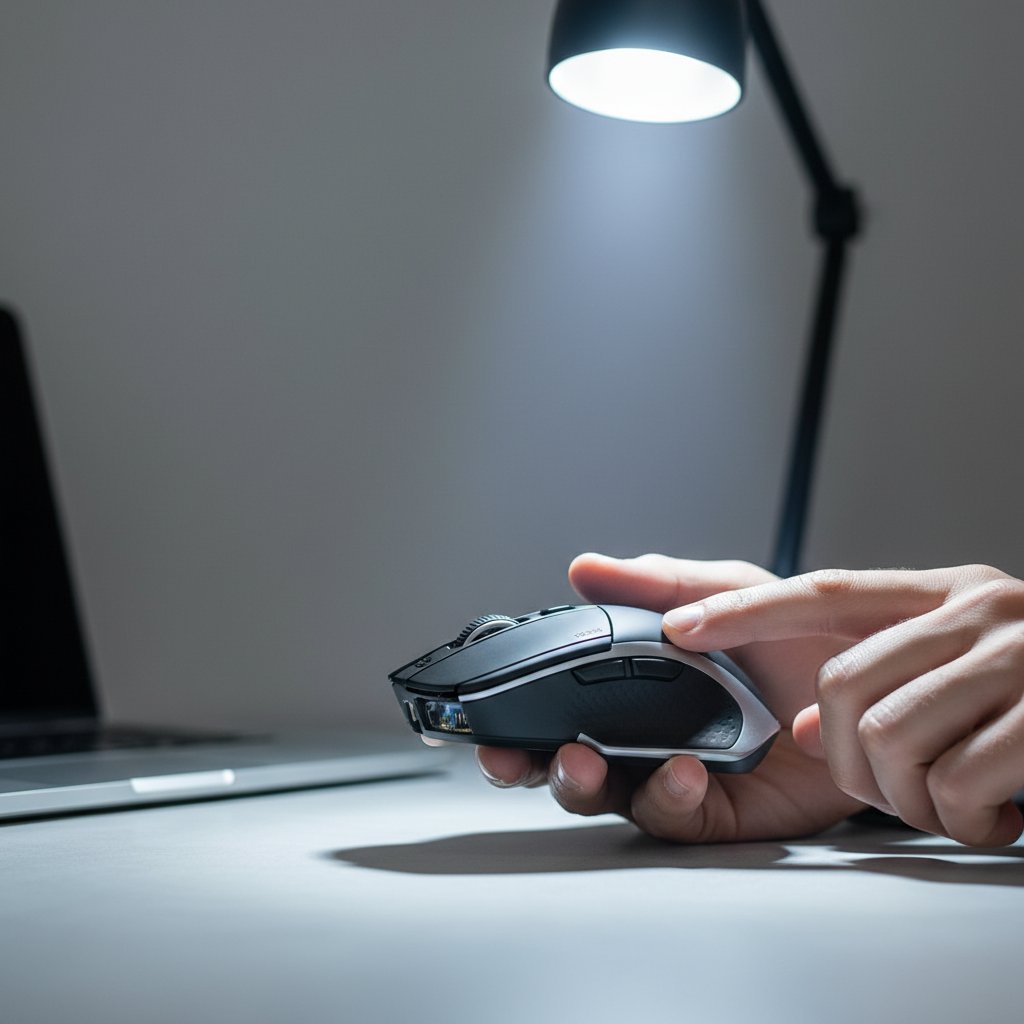
Measure your hand from wrist to middle fingertip. Hands under 17cm suit small mice (115-120mm length), medium hands (17-19cm) match mice around 120-128mm, and large hands (19cm+) need 128mm or longer. Grip style influences shape preference. Palm grip users rest their entire hand on the mouse, requiring fuller backs and larger sizes. Claw grip involves arched fingers with palm contact, working well with shorter, higher-backed designs. Fingertip grip uses only fingertips, suiting lightweight, smaller mice. Ambidextrous shapes accommodate left-handed users but may lack ergonomic contouring. Right-handed ergonomic mice feature thumb rests and curved sides for extended comfort. Weight preferences vary—lighter mice (under 80 grams) enable quick movements, while heavier options (100+ grams) provide stability. Test grip comfort before purchasing when possible, as personal preference significantly affects usability.

1080p resolution (1920x1080) provides clear video for video conferencing platforms. Higher resolutions like 4K rarely benefit calls since most platforms compress video to 720p or 1080p for bandwidth efficiency. Frame rate matters more than resolution—30fps appears smooth for talking, while 60fps suits presentations with movement. Autofocus keeps you sharp when moving, and automatic light correction compensates for changing room conditions. Field of view between 78-90 degrees captures you without excessive background. Wider angles (120 degrees) suit group calls but may distort faces. Fixed-focus webcams cost less and work well when sitting at consistent distances. Consider models with privacy shutters for security. USB connectivity simplifies setup compared to integrated laptop cameras, which often deliver lower quality. Microphone quality in webcams typically underperforms dedicated options, so consider separate audio solutions.

Mechanical keyboards excel for extensive typing due to consistent actuation points and tactile feedback. Each keypress requires 45-60 grams of force depending on switch type, reducing typing fatigue. The distinct actuation point lets you know when a keypress registers without bottoming out, potentially increasing typing speed. Durability stands out—mechanical switches last 50-100 million presses versus 5-10 million for membrane keyboards. Sound levels vary; linear switches operate quietly while clicky variants produce audible feedback. Membrane keyboards offer silent operation and lower cost, suitable for shared workspaces. They require less maintenance and weigh less for portable setups. For writers and programmers typing 6+ hours daily, mechanical keyboards justify the investment through comfort and longevity. Casual users find membrane keyboards adequate. Some prefer low-profile mechanical switches combining slim design with mechanical benefits.

Precision tracking matters most for design work. Sensors with adjustable DPI from 400-3200 allow switching between detailed work and broad movements. High-quality optical sensors like Pixart PMW3389 provide accurate tracking without acceleration or jitter. Programmable buttons enable shortcuts for frequently used tools—6-8 buttons offer flexibility without overwhelming complexity. Ergonomic design reduces strain during long sessions; vertical mice position hands naturally, alleviating wrist pressure. Weight should feel balanced—around 90-110 grams suits most users. Wireless options eliminate cable drag, important when making precise selections. Battery life exceeding 40 hours prevents interruptions. Some designers prefer trackballs for stationary precision, though they require adaptation. Consider mice with customizable profiles for switching between applications. Smooth glide requires quality mouse feet (PTFE or ceramic) and appropriate mousepads—hard surfaces suit low friction, while cloth pads provide control.

Power output measured in watts indicates volume capability—10-20 watts per channel suffices for small to medium rooms. Frequency response shows the range of sounds reproduced; 60Hz-20kHz covers most audio needs. Active speakers include built-in amplifiers, simplifying setup compared to passive speakers requiring external amplification. Connection options matter—USB speakers draw power and audio through one cable, while 3.5mm auxiliary connections work universally. Bluetooth speakers offer wireless convenience for flexible positioning. Speaker placement affects sound quality; position them at ear level, angled toward your listening position, with equal distance from your seat. Two-way speakers separate high and low frequencies between drivers, improving clarity over single-driver designs. Subwoofers add bass depth but occupy floor space. Consider built-in controls for volume and bass adjustment. Shielded speakers prevent interference with monitors.

External SSDs offer speed and durability—read speeds exceeding 500MB/s enable quick backups of large files. They contain no moving parts, resisting shock and operating silently. Capacities from 500GB to 4TB suit most backup needs. USB 3.2 Gen 2 connections provide 10Gbps bandwidth, though USB 3.0 (5Gbps) suffices for regular backups. External HDDs cost less per gigabyte, with 2-5TB drives offering economical bulk storage. They operate more slowly (100-150MB/s) and require careful handling due to mechanical components. For automated backups, choose drives with included software supporting scheduled copying. NAS devices enable network-accessible storage, backing up multiple computers simultaneously. They require initial setup but provide centralized management. Cloud backup services complement physical drives, protecting against local disasters. Consider drives with hardware encryption for sensitive data. Portable drives (2.5-inch) draw power through USB, while desktop models (3.5-inch) need separate power supplies.

Curved monitors with 1800R or 1000R curvature wrap around your field of vision, reducing eye movement when viewing screen edges. This benefits ultrawide displays (34 inches or larger) where flat panels require significant head turning. The curvature creates a more immersive experience for media consumption and gaming. For productivity, curved screens help when working with multiple windows side-by-side—spreadsheets, documents, and browsers remain visible without distortion. Single-user setups benefit most; viewing curved screens from angles reduces image quality. Flat monitors suit collaborative work where multiple people view the screen. Desk depth matters—curved monitors require 60-80cm viewing distance for optimal effect. They typically cost 15-25% more than equivalent flat panels. Consider your workflow: video editors and financial analysts working with timelines or wide data sets gain advantages, while general office tasks show minimal benefit. Test viewing angles before purchasing.

Pressure sensitivity levels determine stroke variation—8192 levels provide nuanced control for professional illustration, while 4096 levels suit hobbyists. Active area size should match your working style; 10x6 inches offers portability, while 13x8 inches or larger accommodates broader arm movements. Resolution measured in lines per inch (LPI) affects precision—5080 LPI captures detailed work accurately. Report rate above 200 points per second ensures smooth line rendering without lag. Tilt recognition allows shading techniques mimicking traditional media. Battery-free pens eliminate charging concerns and reduce weight. Programmable express keys provide shortcuts for common tools—6-8 buttons offer useful customization. Screen tablets display directly on the drawing surface, eliminating hand-eye coordination adjustment but costing significantly more. Pen nibs should be replaceable; different hardness levels affect drawing feel. Compatibility with your software matters—check driver support for your operating system and creative applications.

Surface material affects glide and control. Cloth pads provide friction for precise cursor placement, suiting low-sensitivity users and tasks requiring accuracy. Hard plastic or aluminium surfaces enable fast, low-friction movement preferred by high-sensitivity gamers. Hybrid surfaces combine both characteristics. Size depends on sensitivity settings and available desk space—900x400mm pads accommodate low DPI settings requiring broad movements, while 320x270mm pads suit high DPI users. Extended pads cover keyboard areas, unifying desk aesthetics. Thickness from 2-4mm provides cushioning and prevents edge curling. Stitched edges prevent fraying, extending lifespan. Non-slip rubber bases keep pads stationary during use. Some pads feature water-resistant coatings for easy cleaning. RGB lighting adds visual appeal but doesn't affect functionality. Consider your mouse sensor type—textured surfaces may interfere with some optical sensors. Wrist rests integrated into pads reduce strain during extended use.

Port quantity should exceed your current needs—7-10 ports accommodate growth. USB 3.0 or higher ensures 5Gbps transfer speeds for external drives and peripherals. Powered hubs include external adapters delivering sufficient current (typically 36-60 watts) for charging devices and running power-hungry peripherals simultaneously. Bus-powered hubs draw from your computer's USB port, limiting connected device power. Individual port switches allow turning off specific ports without unplugging devices. Compact designs save desk space, while tower configurations provide easy access to ports. Data transfer rates matter for storage devices—USB 3.2 Gen 2 offers 10Gbps. Some hubs include USB-C ports for modern devices, with Power Delivery supporting laptop charging up to 100 watts. Consider hubs with HDMI or Ethernet ports for expanded functionality. Overcurrent protection prevents damage from faulty devices. Cable length affects placement flexibility—1-1.5 metres allows positioning away from your computer.

Dedicated mechanical keypads benefit users entering numerical data extensively—accountants, data analysts, and inventory managers. They provide tactile feedback and consistent actuation, reducing errors during rapid entry. Standard keypads include 17-22 keys covering numbers, operators, and navigation. Programmable keypads allow assigning macros to keys, automating repetitive tasks. Mechanical switches last 50-100 million presses, far exceeding membrane alternatives. Wireless keypads offer flexibility for positioning at comfortable angles. Some models include displays showing calculation results. USB connectivity ensures plug-and-play operation without driver installation. Consider switch type: linear switches suit rapid entry, while tactile switches provide confirmation without noise. Keycap legends should be clear and durable—double-shot PBT plastic resists wear. Compact designs occupy minimal desk space. For occasional numerical work, standard keyboard number pads suffice. Frequent users gain efficiency and comfort from dedicated mechanical keypads.

About Hazidu

Founded in 2018, Hazidu emerged from a straightforward observation: selecting computer peripherals had become unnecessarily complicated. With thousands of products flooding the market annually, users spent hours comparing specifications without clarity on what truly mattered for their needs.

Our team of 12 specialists combines technical knowledge with practical experience. We test peripherals in real working conditions, evaluating durability, compatibility, and actual performance rather than relying solely on manufacturer claims.

Hazidu team workspace

Our Approach

We match peripherals to specific use cases. A graphic designer requires different mouse sensitivity and keyboard response than a data analyst. Gaming setups demand distinct specifications from office workstations. Our consultations identify these requirements before recommending equipment.
Peripheral testing laboratory

Each recommendation considers budget constraints, existing hardware compatibility, and intended usage duration. We maintain a database of over 2,400 tested peripherals, updated quarterly as new models arrive.

Our London office at Compton Terrace serves as both consultation space and testing facility. Clients can try peripherals before purchase, comparing feel and functionality directly.

What Guides Us

Technical Accuracy

Every specification we provide comes from direct testing. We verify manufacturer claims through standardized procedures developed over 6 years of operation.

Practical Focus

Features matter only when they improve daily use. We prioritize functionality over marketing claims, recommending equipment that delivers measurable benefits.

Transparent Process

Our selection criteria are documented and available. You understand why we recommend specific peripherals and can make informed decisions.

2,400+ Tested Products
6 Years Operating
12 Technical Specialists
850+ Clients Served

Whether upgrading a single component or outfitting an entire office, we provide consultation based on actual requirements. Our recommendations reflect current market availability and consider long-term value rather than immediate cost alone.